Showing posts with label TIP DOCUMENTS. Show all posts

Sunday, 30 July 2023

IOS-DHCP - EXPLAINED WITH LAB RESULTS

 CONDITION

Windows DHCP Server not responding and we need to give quick solution for wireless client to use the Services , We need to configure DHCP server for some wireless clients. 

Lets Start 

Topolgy for DHCP SERVER 


Configure a DHCP pool on router DHCP_SERVER called “MYPOOL” with the following configuration:

Clients should use the DNS server with IP address 1.1.1.1.

Clients should use network 192.168.10.0 /24.

Clients should not use the 192.168.10.10 – 20 range.

Cliends should renew their IP address after 2 minutes for testing (U can use 2 days)

Configure router DHCP_Server  so it stores DHCP bindings in flash.

Router Name DHCP_Client Configure as Client :)

ROUTER DHCP_SERVER CONFIGURATION 


Now Lets start Configure Router for DHCP_Client 


Now lets open Interface f0/0 to Get the IP address from DHCP Server 


During DHCP Client Taking IP Discovery/Offer/Request/Acknowledgement 

*Mar  1 00:27:18.127: DHCP: DHCP client process started: 10

*Mar  1 00:27:18.139: RAC: Starting DHCP discover on FastEthernet0/0

*Mar  1 00:27:18.139: DHCP: Try 1 to acquire address for FastEthernet0/0

*Mar  1 00:27:18.155: DHCP: allocate request

*Mar  1 00:27:18.155: DHCP: new entry. add to queue, interface FastEthernet0/0

*Mar  1 00:27:18.155: DHCP: SDiscover attempt # 1 for entry:

*Mar  1 00:27:18.155: Temp IP addr: 0.0.0.0  for peer on Interface: FastEthernet0/0

*Mar  1 00:27:18.155: Temp  sub net mask: 0.0.0.0

*Mar  1 00:27:18.155:    DHCP Lease server: 0.0.0.0, state: 1 Selecting

*Mar  1 00:27:18.159:    DHCP transaction id: 2191

*Mar  1 00:27:18.159:    Lease: 0 secs,  Renewal: 0 secs,  Rebind: 0 secs

*Mar  1 00:27:18.159:    Next timer fires after: 00:00:04

*Mar  1 00:27:18.159:    Retry count: 1   Client-ID: cisco-cc01.2004.0000-Fa0/0

*Mar  1 00:27:18.163:    Client-ID hex dump: 636973636F2D636330312E323030342E

*Mar  1 00:27:18.167:                        303030302D4661302F30

*Mar  1 00:27:18.171:    Hostname: DHCP_Client

*Mar  1 00:27:18.171: DHCP: SDiscover: sending 300 byte length DHCP packet

*Mar  1 00:27:18.171: DHCP: SDiscover 300 bytes

*Mar  1 00:27:18.171:             B'cast on FastEthernet0/0 interface from 0.0.0.0

*Mar  1 00:27:20.119: %LINK-3-UPDOWN: Interface FastEthernet0/0, changed state to up

*Mar  1 00:27:20.227: DHCP: Received a BOOTREP pkt

*Mar  1 00:27:20.227: DHCP: Scan: Message type: DHCP Offer

*Mar  1 00:27:20.227: DHCP: Scan: Server ID Option: 192.168.10.2 = C0A80A02

*Mar  1 00:27:20.231: DHCP: Scan: Lease Time: 300

*Mar  1 00:27:20.231: DHCP: Scan: Renewal time: 150

*Mar  1 00:27:20.231: DHCP: Scan: Rebind time: 262

*Mar  1 00:27:20.231: DHCP: Scan: Subnet Address Option: 255.255.255.0

*Mar  1 00:27:20.231: DHCP: Scan: DNS Name Server Option: 1.1.1.1

*Mar  1 00:27:20.235: DHCP: rcvd pkt source: 192.168.10.2,  destination:  255.255.255.255

*Mar  1 00:27:20.235:    UDP  sport: 43,  dport: 44,  length: 308

*Mar  1 00:27:20.235:    DHCP op: 2, htype: 1, hlen: 6, hops: 0

*Mar  1 00:27:20.235:    DHCP server identifier: 192.168.10.2

*Mar  1 00:27:20.235:         xid: 2191, secs: 0, flags: 8000

*Mar  1 00:27:20.235:         client: 0.0.0.0, your: 192.168.10.3

*Mar  1 00:27:20.239:         srvr:   0.0.0.0, gw: 0.0.0.0

*Mar  1 00:27:20.239:         options block length: 60

*Mar  1 00:27:20.239: DHCP Offer Message   Offered Address: 192.168.10.3

*Mar  1 00:27:20.239: DHCP: Lease Seconds: 300    Renewal secs:  150    Rebind secs:   262

*Mar  1 00:27:20.243: DHCP: Server ID Option: 192.168.10.2

*Mar  1 00:27:20.243: DHCP: offer received from 192.168.10.2

*Mar  1 00:27:20.243: DHCP: SRequest attempt # 1 for entry:

*Mar  1 00:27:20.243: Temp IP addr: 192.168.10.3  for peer on Interface: FastEthernet0/0

*Mar  1 00:27:20.243: Temp  sub net mask: 255.255.255.0

*Mar  1 00:27:20.247:    DHCP Lease server: 192.168.10.2, state: 2 Requesting

*Mar  1 00:27:20.247:    DHCP transaction id: 2191

*Mar  1 00:27:20.247:    Lease: 300 secs,  Renewal: 0 secs,  Rebind: 0 secs

*Mar  1 00:27:20.247:    Next timer fires after: 00:00:03

*Mar  1 00:27:20.247:    Retry count: 1   Client-ID: cisco-cc01.2004.0000-Fa0/0

*Mar  1 00:27:20.247:    Client-ID hex dump: 636973636F2D636330312E323030342E

*Mar  1 00:27:20.247:                        303030302D4661302F30

*Mar  1 00:27:20.247:    Hostname: DHCP_Client

*Mar  1 00:27:20.247: DHCP: SRequest- Server ID option: 192.168.10.2

*Mar  1 00:27:20.247: DHCP: SRequest- Requested IP addr option: 192.168.10.3

*Mar  1 00:27:20.247: DHCP: SRequest placed lease len option: 300

*Mar  1 00:27:20.247: DHCP: SRequest: 318 bytes

*Mar  1 00:27:20.247: DHCP: SRequest: 318 bytes

*Mar  1 00:27:20.247:             B'cast on FastEthernet0/0 interface from 0.0.0.0

*Mar  1 00:27:20.255: DHCP: Received a BOOTREP pkt

*Mar  1 00:27:20.255: DHCP: Scan: Message type: DHCP Ack

*Mar  1 00:27:20.255: DHCP: Scan: Server ID Option: 192.168.10.2 = C0A80A02

*Mar  1 00:27:20.259: DHCP: Scan: Lease Time: 300

*Mar  1 00:27:20.259: DHCP: Scan: Renewal time: 150

*Mar  1 00:27:20.259: DHCP: Scan: Rebind time: 262

*Mar  1 00:27:20.259: DHCP: Scan: Host Name: DHCP_Client

*Mar  1 00:27:20.259: DHCP: Scan: Subnet Address Option: 255.255.255.0

*Mar  1 00:27:20.259: DHCP: Scan: DNS Name Server Option: 1.1.1.1

*Mar  1 00:27:20.263: DHCP: rcvd pkt source: 192.168.10.2,  destination:  255.255.255.255

*Mar  1 00:27:20.263:    UDP  sport: 43,  dport: 44,  length: 308

*Mar  1 00:27:20.263:    DHCP op: 2, htype: 1, hlen: 6, hops: 0

*Mar  1 00:27:20.263:    DHCP server identifier: 192.168.10.2

*Mar  1 00:27:20.263:         xid: 2191, secs: 0, flags: 8000

*Mar  1 00:27:20.263:         client: 0.0.0.0, your: 192.168.10.3

*Mar  1 00:27:20.263:         srvr:   0.0.0.0, gw: 0.0.0.0

*Mar  1 00:27:20.263:         options block length: 60

*Mar  1 00:27:20.263: DHCP Ack Message

*Mar  1 00:27:20.263: DHCP: Lease Seconds: 300    Renewal secs:  150    Rebind secs:   262

*Mar  1 00:27:20.263: DHCP: Server ID Option: 192.168.10.2

*Mar  1 00:27:20.263: DHCP Host Name Option: DHCP_Client

*Mar  1 00:27:21.119: %LINEPROTO-5-UPDOWN: Line protocol on Interface FastEthernet0/0, changed state to up

*Mar  1 00:27:23.275: DHCP: Releasing ipl options:

*Mar  1 00:27:23.275: DHCP: Applying DHCP options:

*Mar  1 00:27:23.279:   Adding DNS server address 1.1.1.1

*Mar  1 00:27:23.279: DHCP Client Pooling: ***Allocated IP address: 192.168.10.3

*Mar  1 00:27:23.307: Allocated IP address = 192.168.10.3  255.255.255.0

*Mar  1 00:27:23.307: %DHCP-6-ADDRESS_ASSIGN: Interface FastEthernet0/0 assigned DHCP address 192.168.10.3, mask 255.255.255.0, hostname DHCP_Client

CLIENT Getting IP address from DHCP SERVER 


NOW LETS CHECK THE MORE DETAILS FOR CLIENT 

- Lease Server/Lease Time/Renew Time 
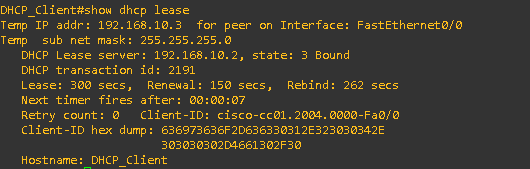


Now Check on DHCP SERVER Binding 


NOW lets Client initiated DHCP IP RENEW, SAME IP Getting from DHCP SERVER 


DHCP SERVER ASSIGNMENT SAME IP AGAIN 


And we have configure to stop this Binding information on FLASH on DHCP SERVER We can see the DHCP SERVER writting this information in FLASH:


Now lets validate the File "mybindings"


Saturday, 29 July 2023

IP-SLA - LOSS/LATENCY/JITTER - MONITOR LAB


CONDITION 

Question raise for performance monitoring for Path so that we can mitigate those problems using the help of IP SLA 


What is IP SLA ?

Cisco IOS IP SLAs send simulated data across the network and measures performance between multiple network locations or across multiple network paths. 

The information collected includes data about:

  •  response time
  • one-way latency
  • jitter (interpacket delay variance)
  • packet loss
  • voice quality scoring
  • network resource availability
  • application performance
  • server response time

IP SLA, feature of Cisco IOS software allows you to configure a router to send synthetic traffic to:

  •  A host computer 
  •  Router that has been configured to respond (Responder) 

IOS IP SLAs measurements perform active monitoring by generating and analyzing traffic to measure performance: 

  •  Between Cisco IOS Software devices
  •  Between a Cisco IOS device and a host

Each of these is a different type of IP SLA operation

With the IP SLAs feature enabled, a router sends synthetic traffic to the other device 

IP SLAs responder is a component embedded in the destination Cisco device that allows the system to anticipate and respond to IP SLAs request packets.

The responder provides accurate measurements without the need for dedicated probes. 

Only a Cisco IOS device can be a source for a destination IP SLAs Responder 


IP SLAs Operation with Responder 


Now Lets check with IP SLA Operation using LAB 


STEP 1 - First Configured the Router 2 as IP SLA Responder 


STEP 2 - Now we configure the IP SLA Source for sending traffic to responder 

IP SLA Type - SELECT 
                        
 TYPE - JITTER 
Destination-IP-Address - Router 2 loopback 
Destination Port - UDP - 16384
Codec g711alaw 


Configuration for IP SLA Monitor 


Use the frequency seconds command to set the rate at which a specified IP SLAs operation repeats. 
  • The seconds parameter is the number of seconds between the IP SLAs operations , Default is 60 seconds 
Use the optional timeout milliseconds command to set the amount of time a Cisco IOS IP SLAs operation waits for a response from its request packet. 
  • It is recommended be based on the sum of both the maximum RTT value for the packets and the processing time of the IP SLAs operation
Now lets validate the IP SLA results 

RESULTS 
- RTT 
- LATENCY 
- JITTER
- PACKET LOSS


Tuesday, 25 July 2023

NAT - HTTP LOAD BALANCING USING NAT


Condition : 

Lets you have 3 Web Servers and you do not have Load Balancer , but still you want to do the Web Server Round Robin Load balancing

Topology for TEST 


Now Lets start 

STEP 1 - First Make Router www1/2/3 as Web Servers :)

              Enable - ip http server on Web Routers 

STEP 2 - Now Configure NAT Router for Web Server traffic load Balancing 


Enable NAT - 

1- NAT Pool 

2- Alias 

3- Enable IP NAT inside and outside 


4 - Access List for Filter Traffic specific to Web Server IP 192.168.45.100 port 80


Now Lets TEST 

When we Telnet from Host for Port 80 Multiple Times, and check on NAT router


we notice we have Load balancing for Server IP 192.168.45.100 on port 80


IOS - Conditional Debug

 CONDITIONAL DEBUG 


feature called "conditional debug" that sounds interesting. It seems that you can use this command to only show the output of certain protocols instead of having your screen flooded with debug information.

Understanding Steps 

OSPF and RIP have been preconfigured to generate some traffic.

Enable a debug on router Delhi which only shows RIP information on the FastEthernet0/0 interface. You are not allowed to use any access-lists.


Router Delhi ---------------------Router Lucknow 


RIP Running on Router Delhi 


RIP Running on Router Lucknow 


Lets now Proceed for Conditional Debug understanding , first let enabled debug for RIP normal 


You will notice that after enable Normal Debug you will see the RIP sending updated on every RIP enabled Interfaces like loopback and F0/0


Now the TIME to use CONDITIONAL DEBUG 


Now you notice debug will shows only RIP send on Fa0/0 interface 


Loopback information suppress and not showing in debug :)


Friday, 21 July 2023

IOS - IP Accounting - HELP TO KNOW TRAFFIC

 CONDITION :

We want to know which Traffic is getting problem of high utilization on Router Link,

lets start to take help of IP accounting to get this information.


TOPOLOGY 


On router C 


ON router A


On Router B - IP ACCOUNTING 


Now Start Ping from Router A to Router C and check Accounting on Router B , we have found accounting start capture the Packets and Bytes 


Saturday, 15 July 2023

IOS - PROXY ARP - HOW WORK ?

 IOS - PROXY ARP - HOW WORK ?


Proxy ARP - "On behalf of Other means Proxy"

Proxy ARP is a technique by which a proxy server on a given network answers the Address Resolution Protocol (ARP) queries for an IP address that is not on that network. The proxy is aware of the location of the traffic's destination and offers its own MAC address as the (ostensibly final) destination.


Here, we will explain Proxy ARP with an example. For our Proxy ARP example, we will use the below topology.


PC  A /B/C/D  and PROXY ROUTER  all Configured with Static IP address , without no IP Proxy ARP 

TEST from PC A to PC C or PC D is not reachable , But all Gateway Reachable 


On Proxy Router


PROXY ARP DISABLED 


Ping is working for Own Gateway for PC but not for Other Subnet Gateway "NO ROUTING ENBALED"


DEBUG ARP Information , ARP Broadcast but no Reply for Destination MAC.


Now Let see what happen when we enable PROXY ARP on interface toward PC A and B Proxy ARP Router.


NOW AGAIN TEST SAME PINGS 


Now we can see we are able to ping after enable proxy ARP , Proxy ARP router Says PC A let me Proxy your packets to Other Subnet.

When you check the ARP , you notice MAC address for PC D and C are same as Proxy Router MAC, This means Proxy Router giving it MAC for redirect the Packet.

PROXY ROUTER MAC - 


DEBUG ARP shows First Packet hold and ARP packet send Broadcast on Layer 2 MAC and Proxy Router Respond with it Own MAC for IP 172.16.1.4 , and then Destination MAC change from Broadcast to PROXY ROUTER 


See in Packet capture Source/Destination MAC and IP 


Good to Understand the Proxy ARP ,


